
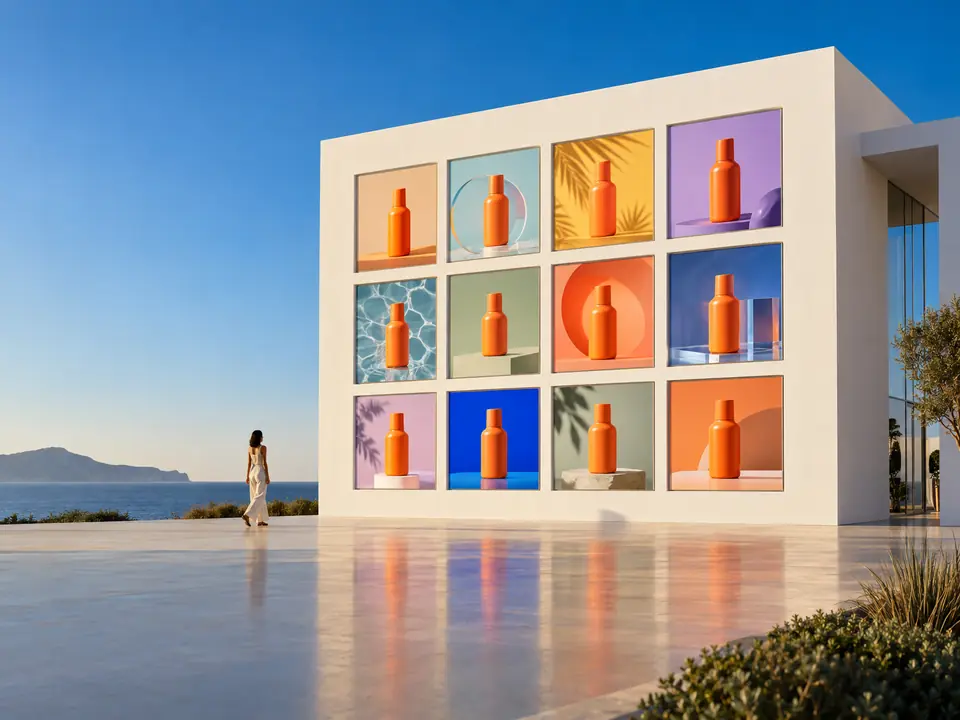

One product, every season
Christmas product photos, summer campaign visuals, an autumn newsletter header: the same packshot can carry a whole year of campaigns without a new shoot.
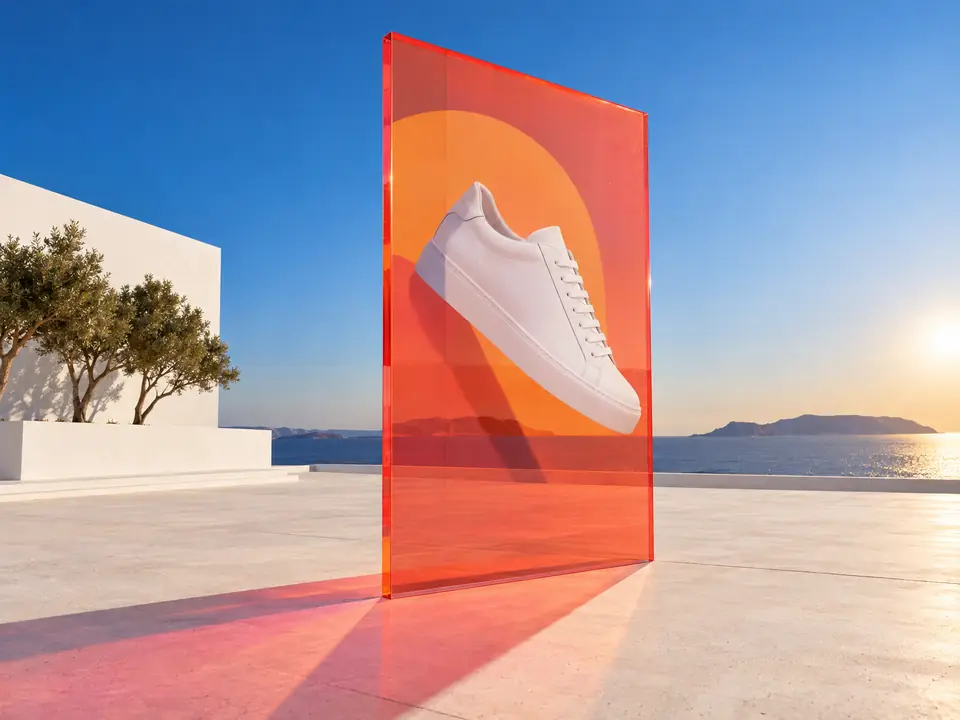
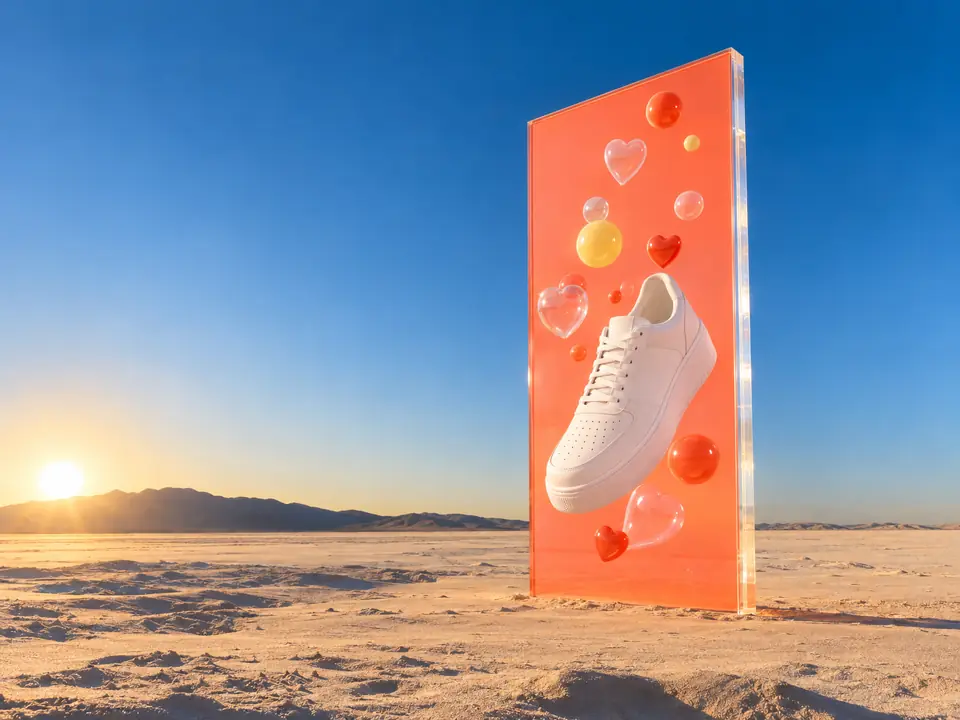
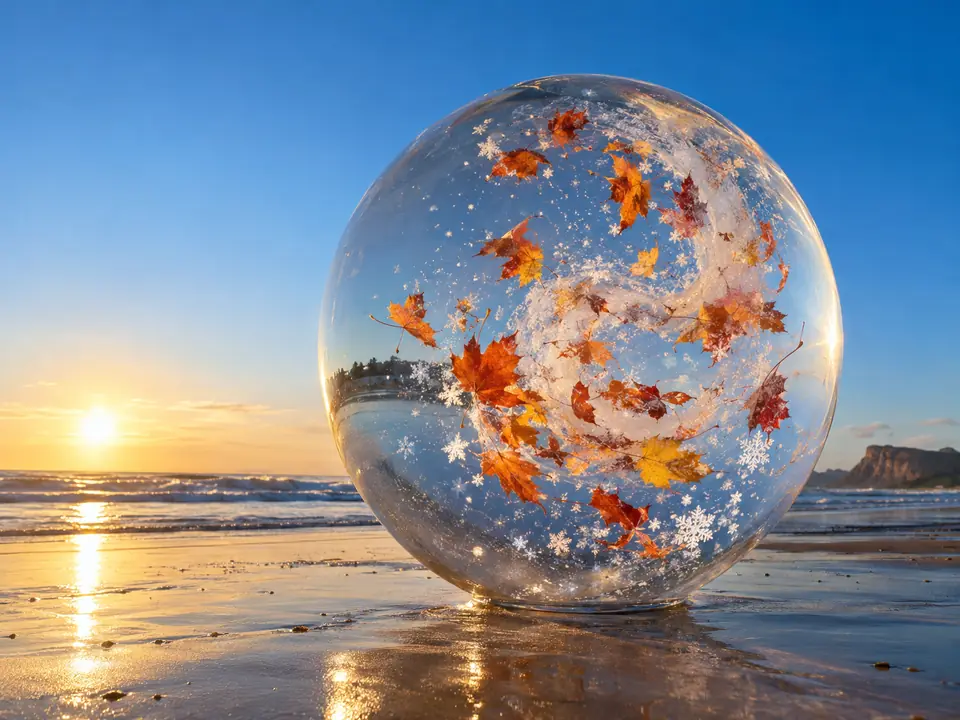
DFIRST Seasonal visuals is an AI tool that places your product in a seasonal campaign setting. Upload a product photo, add up to three more, describe the season, such as a Christmas table or a summer beach, choose the format, and you get one seasonal picture with every product placed in it, unchanged.
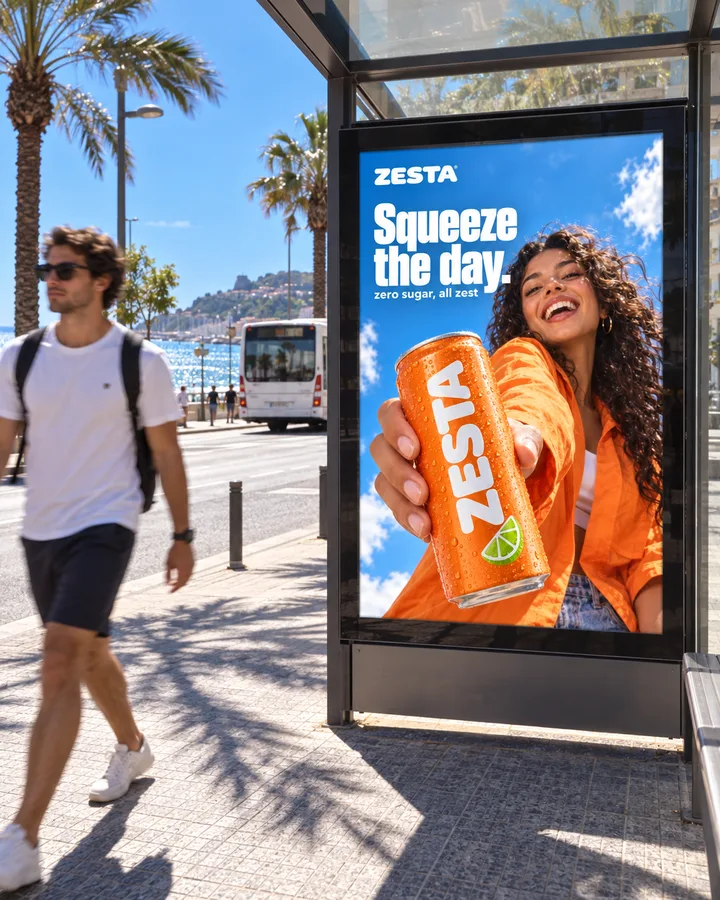
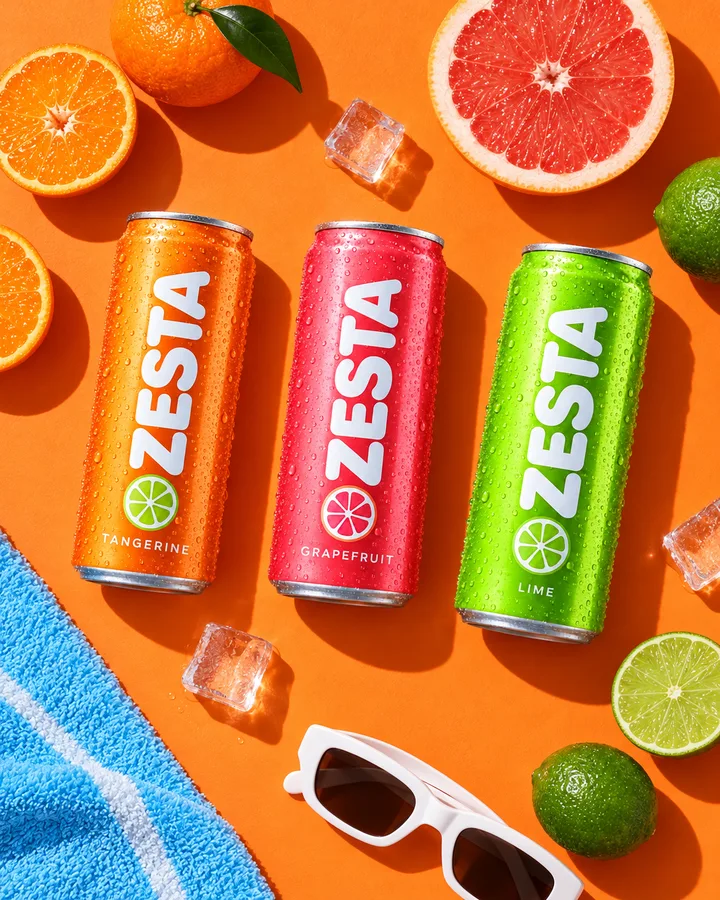
A summer brand's can, placed into the moments that come round every year.

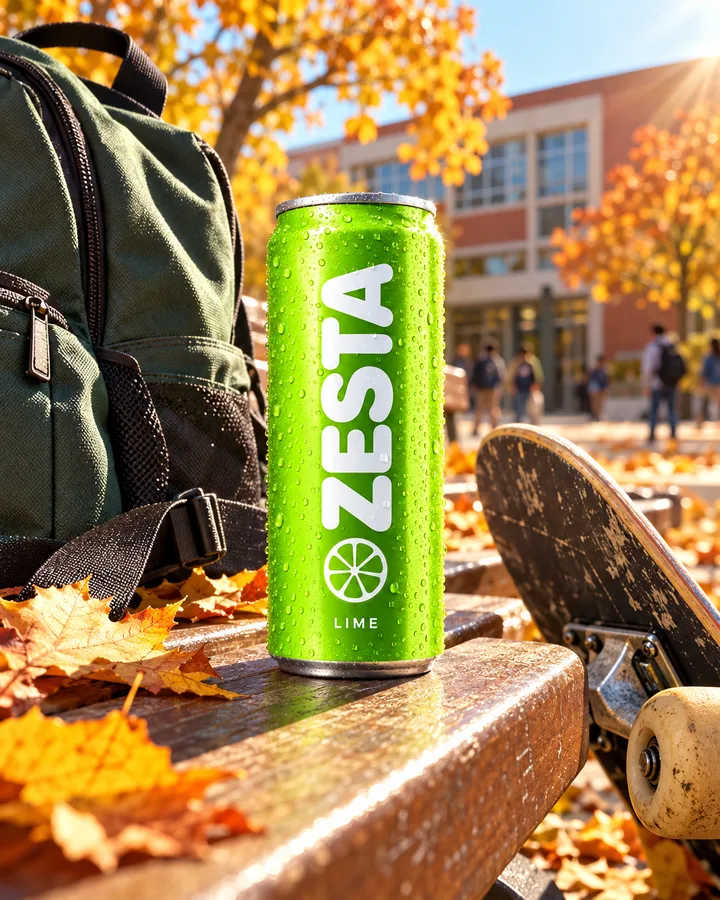
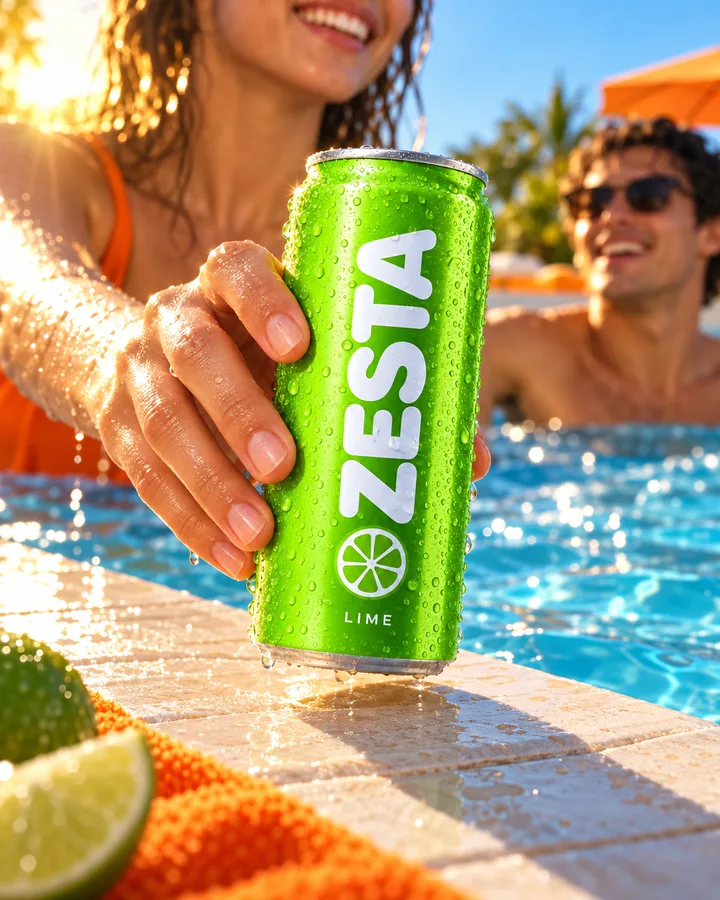
Three steps. The first one starts on this page.
Upload the product and describe the moment: the holiday, the weather, the props, the light. Add the rest of the range if the picture should show a gift set or a bundle.
Every product from your photos is placed, unchanged, in a tasteful seasonal campaign setting that follows your description.
Download the picture or ask for another take. Open it on the board of a session to make the vertical and wide versions each channel needs.
Christmas product photos, summer campaign visuals, an autumn newsletter header: the same packshot can carry a whole year of campaigns without a new shoot.
Add up to three more products and they appear together: a gift box, a summer bundle, a holiday range on one table.
Seasonal campaigns are planned months ahead. Make the visuals while the brief is fresh and keep them in your Data Room until the date comes.
Holiday, summer and back-to-school images for the shop and the newsletter.
Seasonal posts for the content calendar, made in one sitting.
Limited-edition and gift-set pictures for a launch page.
Seasonal campaign ideas for several clients at once.
The facts about Seasonal visuals, as it works in DFIRST today.
About Seasonal visuals and how it fits the rest of DFIRST.
Upload your product photo in the box above and describe the season and the setting: a Christmas table, a summer beach, an autumn walk. DFIRST places the product in that scene and returns one campaign picture in the format you chose.
Yes. Describe the holiday setting you want, such as a wrapped gift table with warm lights, a snowy window or a festive dinner, and say if the picture should leave space for a headline. The product goes into the scene as it is.
The tool asks the model to keep every product unchanged and to change only the setting. It is still a newly drawn picture, so compare the label and small details with your original before you publish.
Yes, up to four: the main photo plus three more. That is useful for gift sets, bundles and a holiday range on one shelf. Describe how they are arranged, for example a gift box in front with two products behind it.
Add it in your design tool afterwards for clean, correctly spelled lettering. If you want room for it, say where in your description, for example 'clear space at the top for a headline'. Typed lettering is always sharper than lettering an image model draws.
Yes. Choose vertical 9:16 for stories and reels, square for the feed or wide for a website header, and describe the summer scene: a beach, a picnic, a pool, a city in the heat. Run it once per format, or change the format of the card on a session's board.
Your seasonal visuals draft waits on this device until your access starts. DFIRST opens to people on the waitlist first.
Updated