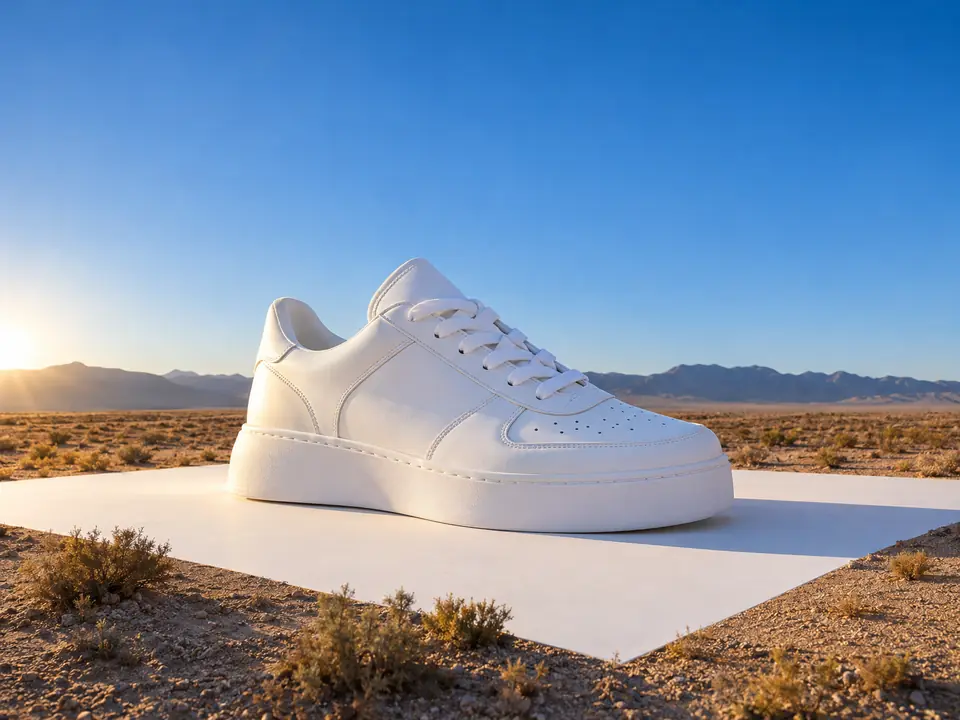
A retoucher's eye first
Most quick fixes only brighten a photo. Here a model inspects the product, its surface and everything around it, as a retoucher would at 100%, before anything is changed.
DFIRST Fix a phone photo is an AI tool that retouches a phone snap into a polished product photo. Upload one picture: DFIRST inspects it like a retoucher, writes a retouching plan, and Nano Banana Pro returns the same scene in 4K, relit and cleaned of marks and dust, with the framing, objects and printed text kept.
Light, colour, noise and sharpness are fixed; the table, the cup and the moment stay as they were.
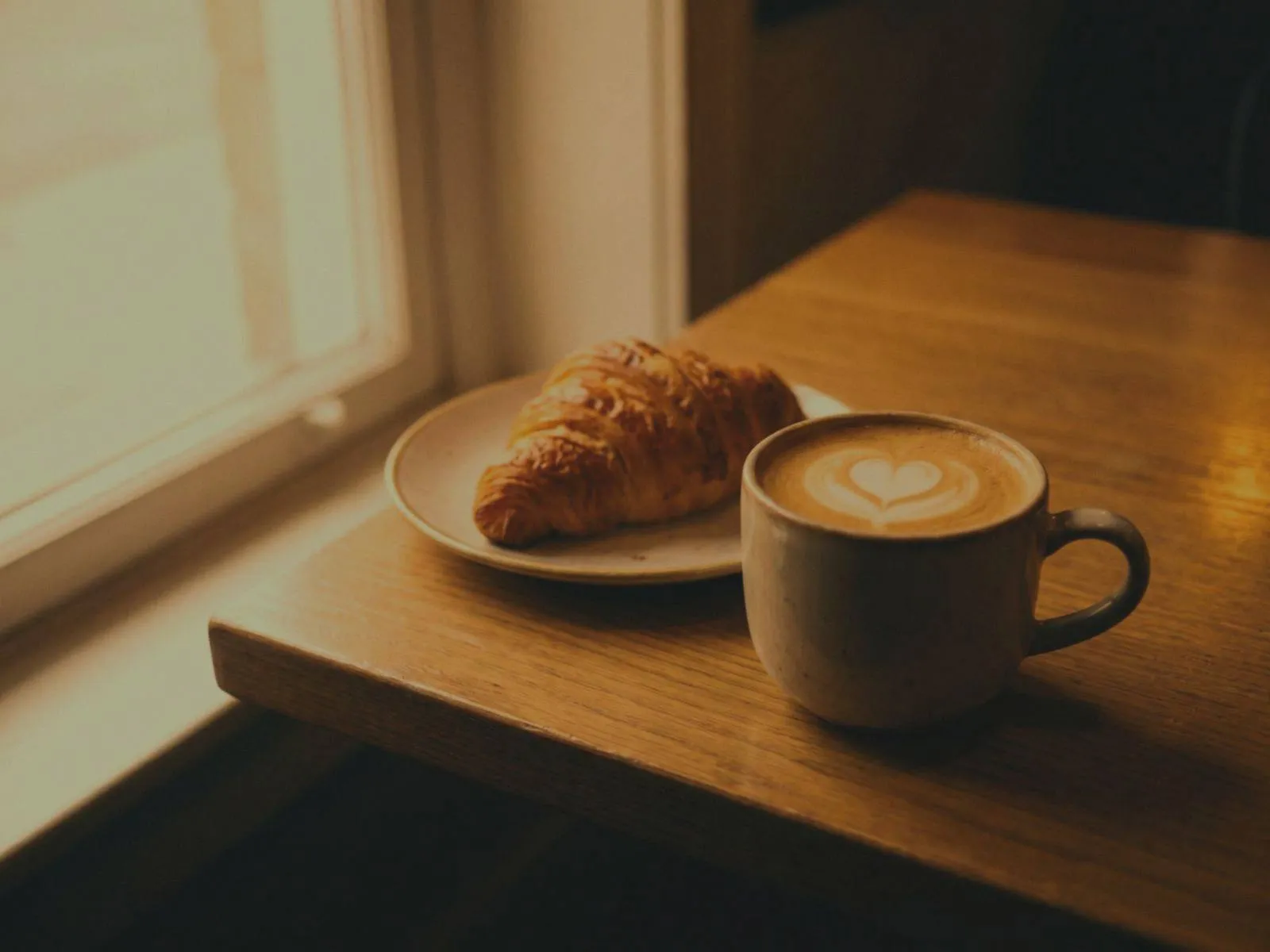 After
After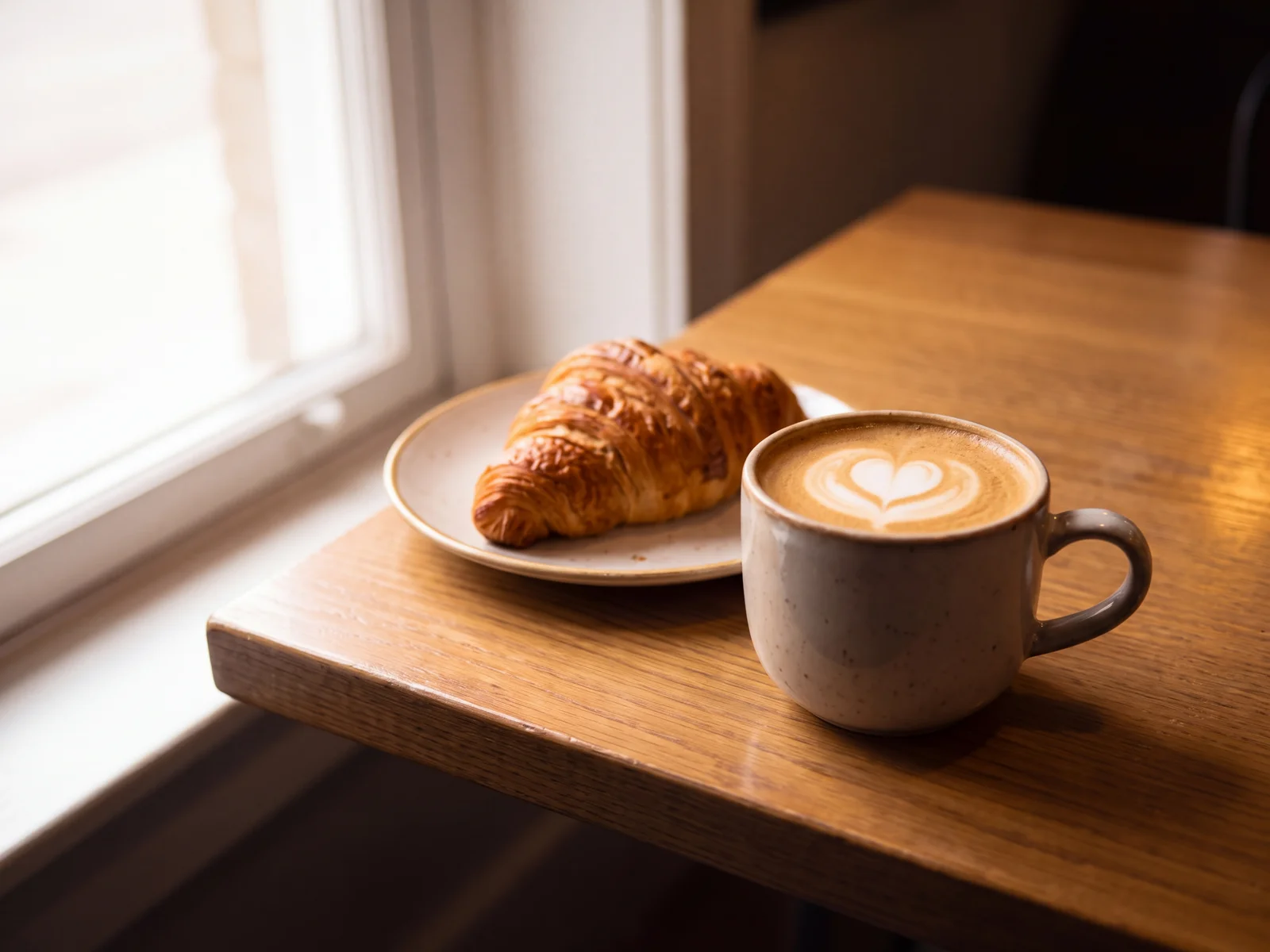
Three steps. The first one starts on this page.
Add a phone photo of your product, on the kitchen table, in the shop window or on the counter. There is nothing to set.
First it looks closely at the picture and notes what holds it back: flat light, smudges, dust, a busy background, a colour cast. Then it writes the retouch, and Nano Banana Pro carries it out in one pass.
Download the 4K result for your shop or your social posts. The inspection notes and the retouching plan are plain text you can read on the board of a session.
Most quick fixes only brighten a photo. Here a model inspects the product, its surface and everything around it, as a retoucher would at 100%, before anything is changed.
The composition, the camera angle, every object and every printed label stay where they were. Blemishes go, objects never do, and the result is a real photograph rather than a render.
The inspection and the retouching plan are written in plain English. Open them on the board of a session, change a line, and retouch again with your correction.
Product photos taken on a phone, made good enough for the online store.
Enhance product photos for listings without a light tent or a photographer.
In-store and behind-the-scenes snaps polished for a brand feed.
The facts about Fix a phone photo, as it works in DFIRST today.
About Fix a phone photo and how it fits the rest of DFIRST.
Upload the photo in the box above and continue in DFIRST. It inspects the picture, writes a retouching plan and returns a polished 4K version of the same scene: brighter, cleaner, and with the product clearly lit.
That is what this tool is built for. The retouch keeps the composition, every object with its shape and colour, and printed text and logos exactly as printed. The model still redraws the image, so compare labels and fine print with your original before you use it.
No. The tool keeps your photo's geometry and framing, so a tilted horizon stays tilted and nothing is cropped. Straighten or crop the photo on your phone first, then upload it. This is deliberate: the tool chooses fidelity to your photo over changing its geometry.
Upload it here. The product is relit so it becomes the best-lit thing in the frame, the background is calmed and slightly darkened, colour casts are neutralised, and noise and softness are cleaned up. The result comes back in 4K.
Flat or dark light, drips, stains, fingerprints, dust and scratches on the product, marks on the surface around it, a busy or blown-out background, colour casts and noise. Each problem it finds is named in the retouching plan.
Yes. Image upscale only makes a picture larger. Fix a phone photo relights, cleans and retouches it, and the result is already 4K, so there is no need to upscale it afterwards. Use Image upscale for pictures that already look right but are too small.
Your fix a phone photo draft waits on this device until your access starts. DFIRST opens to people on the waitlist first.
Updated